
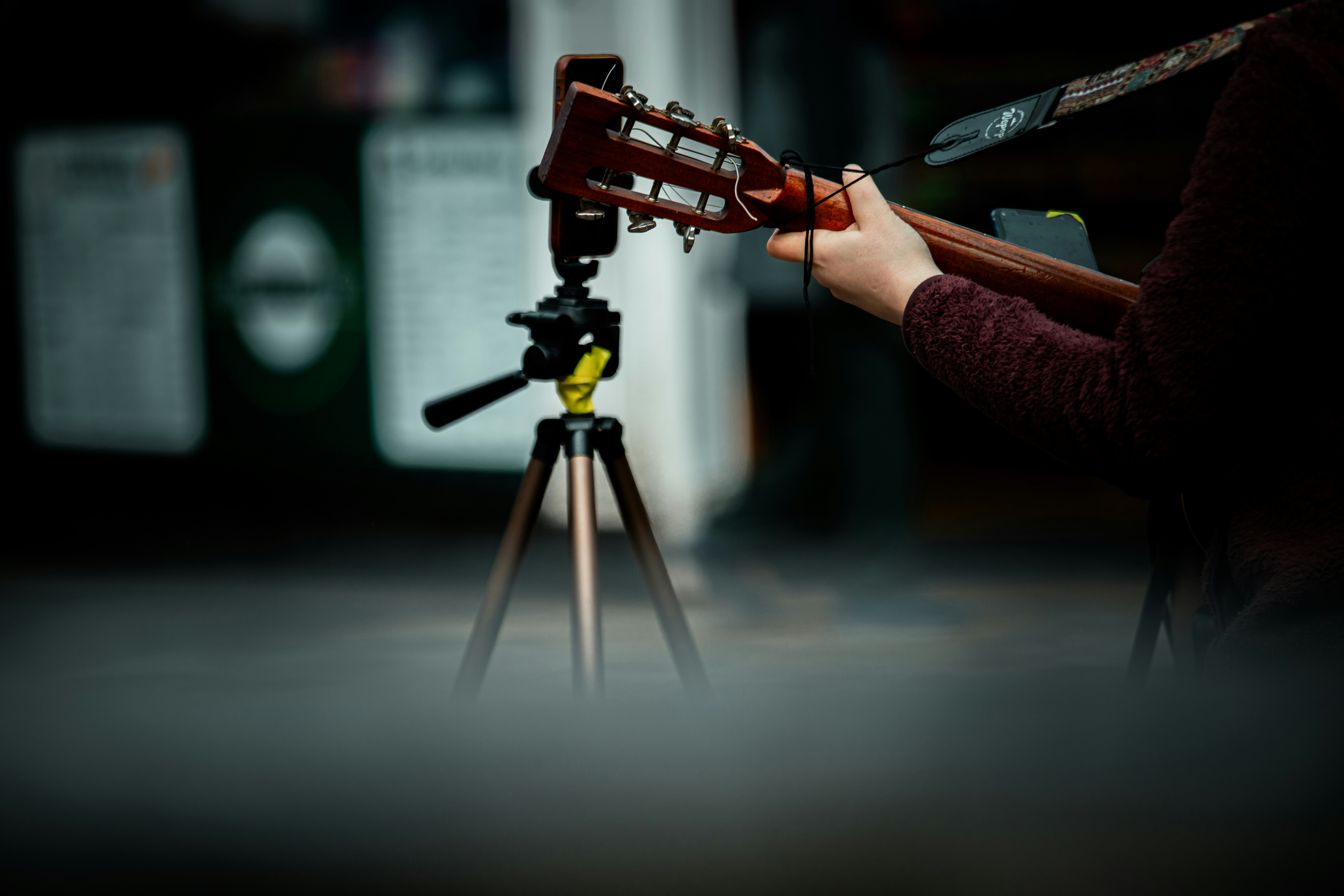

Many musicians now share their playing through video, from guitar lessons and piano tutorials to cover performances and gear demos. A typical video moves between several shots, such as a spoken introduction, a close-up of the hands, a wide shot of the full performance and on-screen text with chords or tabs. Each of those changes is a cut, and every cut asks the viewer to adjust to a new picture. When the edit is silent at those points, the video can feel abrupt or unfinished even when the playing itself is good. This article explains how short sound cues can guide viewers through those changes without taking attention away from the music.
Why cuts in music videos benefit from sound
Cuts in music videos behave differently than cuts in a vlog or short film, because the soundtrack is often the instrument being played. When a lesson jumps from the teacher talking to a fretboard close-up, the room tone, microphone position and volume can all change at once. Viewers hear that change before they consciously notice the new shot, and it can make the edit feel rough. A short sound placed across the cut covers the shift in room sound and tells the viewer that the change is intentional. This is a small detail, but it is one of the clearest differences between a home recording and a video that feels planned.
The most common tools for this job are transition sound effects, short audio cues designed to sit on or around an edit point. They include soft whooshes, swells that build toward a moment, sharp accents and digital motion sounds. Each type suits a different kind of change, so choosing the right one starts with knowing what the cut is doing. A shift in camera angle needs something light, while a move into a full performance can carry a sound with more weight. Treating these cues as part of the edit, rather than decoration added at the end, keeps them consistent across a video.
Matching the sound to the type of cut
Different moments in a music video call for different cues, and the most frequent one is a simple change of camera angle. Moving from a wide shot to a close-up of the hands happens many times in a typical guitar or piano lesson. A soft, short whoosh works well here because it suggests movement without drawing attention. Keeping the whoosh under a second long helps it stay in the background. The aim is for the viewer to register that the view changed, not to remember the sound.
Swells and risers suit the moment when a lesson moves from explanation into a full play-through. That transition marks a change in purpose, as the viewer stops learning and starts listening. A swell that builds over one or two seconds and ends just before the first note prepares the viewer for the performance. The same idea applies to cover videos that open with a short spoken introduction before the song begins. The swell must finish cleanly, because any tail that overlaps the first note will blur the start of the performance.
On-screen text is the third common case, and it benefits from a sharper, shorter sound. Chord names, tab, tempo markings and exercise numbers often appear on screen in lesson videos. A brief accent or click timed to the moment the text appears helps the viewer notice the information. These sounds work best when they are quiet and consistent, so the viewer learns to connect the sound with new information. Using the same accent for every text reveal in a series also makes the videos feel like part of one channel.
Keeping transitions out of the way of the music
The main difference between editing music content and other video is that the transitions share space with an instrument. Tonal transition sound effects, such as swells built on a pitched note, can clash with the key of the song if they are chosen without checking. A swell in a different key leading into a song in E minor will sound wrong to most musicians watching. Untuned whooshes and noise-based swells avoid this problem, while tonal cues should be matched to the key using a free reference such as musictheory.net or used only where no music is playing. Musicians already train their ears to hear these clashes, which is exactly why their audience will notice them.
Level and timing matter as much as the choice of sound. A transition should sit clearly below the instrument and the spoken voice, so the viewer hears it as support rather than a separate event. Placing the peak of a whoosh right on the cut, with the sound starting slightly before it, usually feels the most natural. When the cut leads into playing, the transition should end before the first note so the attack of the instrument stays clean. Exporting a short test section and listening back once before rendering the full video catches most timing problems.
Restraint is the last part of keeping transitions out of the way. Not every cut needs a sound, and a video with a cue on every edit quickly becomes tiring to watch. A useful approach is to reserve sound for changes in section, such as moving from theory to practice or from a slow demonstration to full tempo. Small angle changes within one section can often be left silent or covered by the room sound alone. The fewer cues a video uses, the more meaning each one carries.
A teacher’s channel in practice
Lena Brandt, a piano teacher who records weekly beginner lessons at home, ran into this problem with her own channel. She used hard cuts between her explanation, a top-down shot of the keys and a final play-through. Her viewers often commented that the videos felt choppy, even though the playing was clear. She added a soft whoosh to angle changes, a short swell ending just before each play-through and a quiet click for chord names on screen. The cuts stayed the same, but the lessons now move from one part to the next in a way that feels planned.
Building a small, reusable set of sounds
Once the basic approach is in place, it helps to build a small set of sounds that can be reused across every video. Most channels only need a few whooshes, two or three swells and one or two accents, sorted in folders by function rather than by file name. Working from the same set keeps the sound of a channel consistent and makes editing faster, because there is no need to search for a new sound on each upload. Files in WAV format can be dropped straight into video editors such as Premiere Pro, Final Cut Pro and DaVinci Resolve, as well as into DAWs like Logic Pro and Ableton Live. That last point is useful for musicians who prefer to finish the audio of a video inside the same software they use to record.
Licensing is worth checking before any of these sounds go into a published video, especially on a channel that earns money from ads or sponsorships. Free sound packs found online do not always state clearly where the sounds came from or how they may be used. Ocular Sounds offers transition sound effects in several styles, including whooshes, swells, accents and motion sounds, all licensed for commercial use without royalties. The license requires the sounds to be part of a larger work, which a lesson or cover video already is. Reading those terms once before building a set avoids uncertainty later, such as when a lesson is reused in a paid course.
Conclusion
Sound cues will not fix weak playing or poor lighting, but they do change how a finished video feels to watch. The simplest next step is to open the most recent video on a channel, find the three cuts that feel most abrupt and try a short cue on each. Comparing the two versions side by side usually makes the difference clear within a few seconds. If the edited version feels smoother, the same cues can become the starting point for every video that follows. The same habit of listening critically to an edit will also improve every other part of a musician’s recordings.


0 Comments